page designMany of the composition classes taught in the CCCL incorporate "page design elements" into their assignments. This usually includes writing resumes, brochures and newsletters. Both Microsft Word and Microsoft Publisher provide extensive resources for desktop publishing. Generally, Word is powerful enough for the required assignments. To use a template in Word click New in the File menu: select by clicking the desired template in the New Documents dialog box: Bullets and Numbering To insert Bullets or add numbering, select the items you wish to bullet or number.
To format, select the bulleted or numbered list and click Format > Bullets and Numbering and choose desired style. Click Customize for additional options:
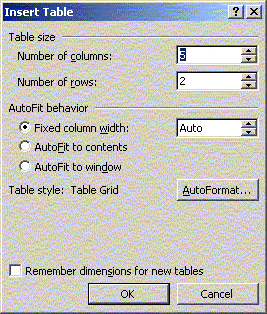
Tables To insert table, place cursor at the insertion point and click Table > Insert Table
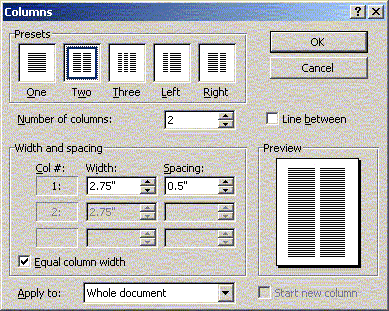
Columns To place text in columns, click Format > Columns
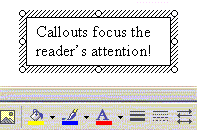
Callouts Use callouts to give your papers visual appeal and to focus the reader's attention. The material in a callout box can be a quotation from a source, an explication of the paper’s thesis, an anecdote that illustrates something said in their paper, an aside (that is, an interesting idea that relates to the thesis of the paper but does not really belong in a well-focused paper), and so on. Place a callout anywhere in the paper by drawing a textbox and putting the information in the box. Click Insert > Text Box.
|
|
  |
Vertical and horizontal adjusts the one dimension |
 |
Diagonal changes both dimensions |
 |
Move repositions the text box but changes neither dimension. |
| Customize the callout with the drawing toolbar. Take care to adjust the callouts size to fit the text--text can "disappear" at the callout's borders. | |
 |
|
| Choose line style and color, and background and font
color with the drawing toolbar at the bottom of the page.
See Odell and Katz, Writing in a Visual Age, Chapter 8 (479-527).
|
|
|
Some Useful Websites:
|
|
 icon.
icon. icon.
icon.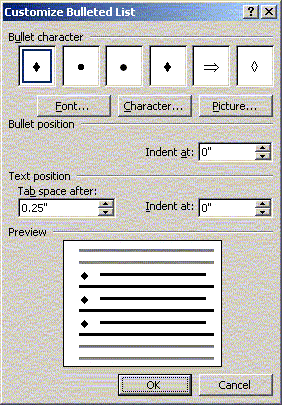
 .
. changes
to a double ended arrow for adjusting size:
changes
to a double ended arrow for adjusting size: